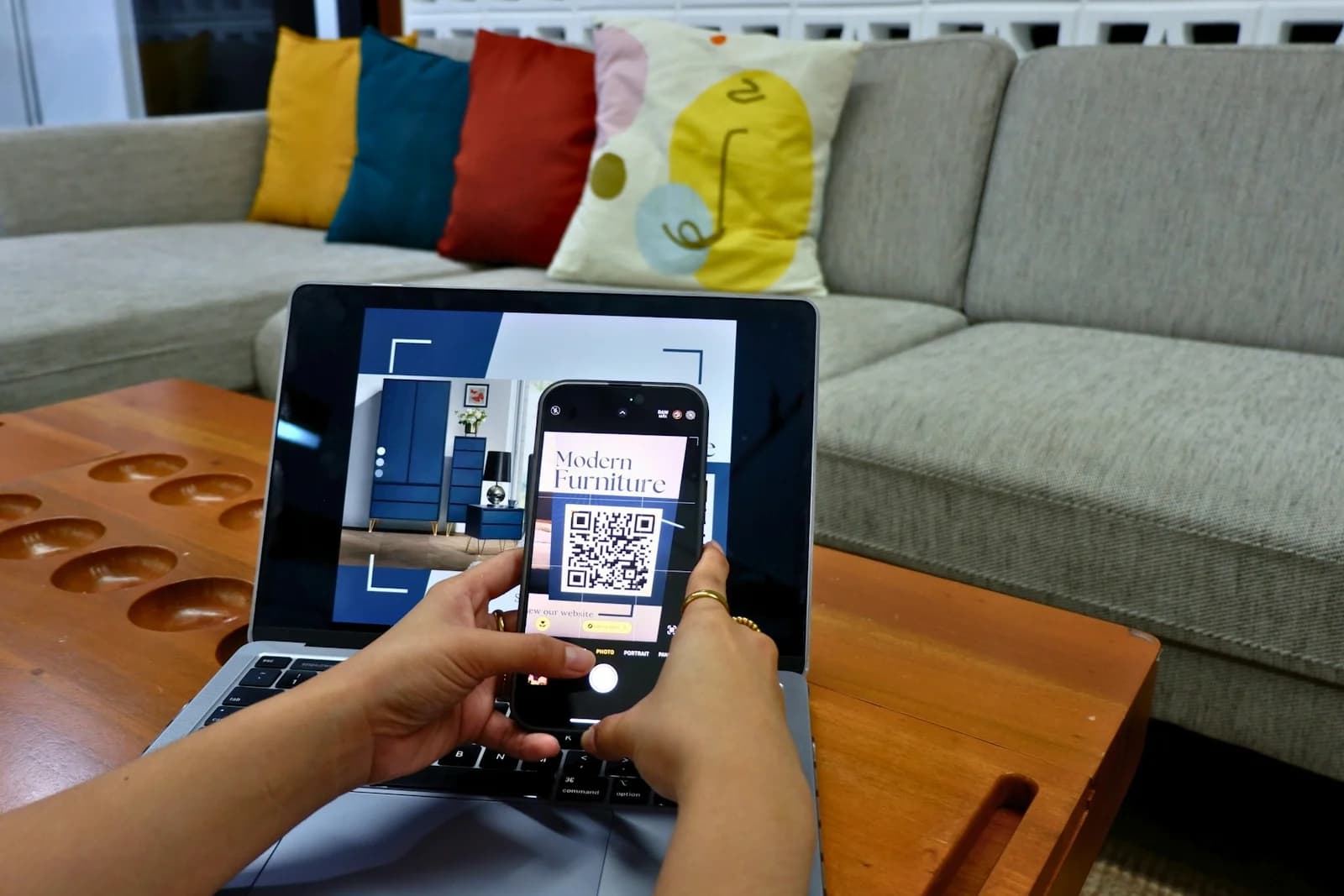
A café prints a QR code on its menus. It scans perfectly, opens the right page, and looks good beside the logo. A month later, the menu moves to a new web address. The printed code still points to the old one.
Making a QR code takes very little time. Choosing the right link is the part worth slowing down for. Before you download anything, decide whether the destination will stay put, whether visitors can open it without signing in, and where they will scan the finished code.
For a quick start, open Folio’s free QR code generator, select Website address, paste your link, and choose Generate QR code. Download PNG or SVG, then scan the downloaded file with your phone. You do not need an account for this standalone tool.
Start with the page you want someone to reach
Send people straight to the useful thing: the menu, booking form, event details, or document. A code on a workshop poster should open the registration page, not leave someone hunting through your homepage. Check the destination on a phone before turning it into a QR code.
Open that link in a private browser window or on a device where you are signed out. A page that works in your own account may ask everyone else to request access. Shortening the address or encoding it in a QR code will not change those permissions.
Static vs. dynamic QR codes: what actually changes?
A static QR code contains fixed information. If it encodes a website address, that address is part of the pattern. You can update the page at the same address, but changing the encoded address means making a new QR image.
What is often called a dynamic QR code usually contains a redirect link. The printed pattern stays the same while a service changes where that link sends visitors. The flexibility comes from managing the redirect, so the code depends on that service and the saved link remaining available.
Your situation | A sensible starting point |
|---|---|
A stable website page you control | A static QR code pointing directly to that page. |
A printed menu whose web address might change | A QR code for a saved short link with an editable destination. |
Guest Wi-Fi details or a short text message | A static code containing the details themselves. |
A one-off event registration page | A direct code if the address is final; an editable short link if it may move. |
Folio’s standalone generator makes static codes. For an editable destination, create a link with the URL Shortener and use its Generate QR option. Folio Pro lets you update that saved link’s destination while keeping the same short address and QR image. Free accounts can also generate short-link QR codes, but destination editing requires Pro.
How to create a QR code for a website link
Copy the final website address and open it in a fresh browser tab to check it.
Open Create QR Code in Folio. Under QR content, choose Website address and paste the URL.
Choose Code color and Background. A dark code on a plain, light background is a dependable starting point.
If you want a PNG, select 512, 1024, or 2048 pixels under PNG dimensions. You can also download an SVG after generating.
Select Generate QR code, then Download PNG or Download SVG.
Scan the downloaded image and follow the link all the way to the page. Confirm that it is the exact destination you intended.
Put a short instruction beside the finished code. “View the lunch menu” gives someone a reason to scan. “Scan me” leaves them guessing. Include a readable web address nearby when space allows, so someone can still reach the page if their camera struggles.
Can you create a QR code for a PDF?
Yes. The QR code should contain a web link to the PDF or a page where people can open it. First place the document somewhere that supports the access you intend, then test its sharing link while signed out. Pasting a filename such as menu.pdf will not upload the file or make it available online.
Files in your private Folio workspace are not public PDF hosting. For a public handout, use a suitable public document link or a page on your website. If you will replace the PDF regularly, keep a stable page address or use a short link whose destination you can edit.
How to make a Wi-Fi QR code
For a guest network, choose Wi-Fi network under QR content. Enter the network name exactly as it appears in your Wi-Fi settings, select the matching security option, and enter the password. Mark Hidden network only if that applies. Generate the code and try joining with a compatible phone.
A Wi-Fi QR code stores connection details; it does not keep the password secret. Anyone who can read the code may be able to recover those details. Use credentials you are comfortable sharing with that audience, such as a separate guest network. Changing the network name or password means replacing the code.
PNG or SVG: which should you download?
PNG is convenient for documents, slides, and apps that accept ordinary image uploads. Download enough pixels for the size you plan to use, and avoid enlarging a small image until its edges blur. Folio offers three PNG sizes so you can choose the one that fits your layout.
SVG is a vector format, so its edges remain sharp when scaled. It is a useful choice for print layouts when your design software or printer accepts it. Either format can work well; the final printed size, surrounding space, contrast, and viewing conditions still matter.
Why a QR code will not scan—and what to check
Start with the white space around it. That clear margin is called the quiet zone. DENSO WAVE’s QR code guidance specifies a margin four modules wide on every side. A module is one of the small squares that make up the code. Folio includes that margin in its download; keep it when placing the image in your design.
The camera does not recognize a code: check for a cropped margin, blurry edges, low contrast, glare, or a code that is too small at the scanning distance.
The camera recognizes it but the page fails: open the encoded address directly. Check for a typo, a deleted page, a sign-in requirement, or a missing internet connection.
It works on screen but fails in print: scan a proof at the actual printed size and under the lighting where people will use it.
It works on one phone only: try another device, adjust distance and lighting, and simplify the design before printing more copies.
Do not place a logo, label, or decorative shape over the downloaded pattern and assume it will still work. Folio does not provide a logo-overlay feature. Put your branding beside the code and test the complete layout, including any border or background you add.
Questions to settle before sharing
Do QR codes expire?
The static codes created by Folio’s standalone generator have no Folio expiry. The destination can still disappear, change permissions, or stop loading. A code pointing to a short link also depends on that saved link and its redirect service. Deleting a Folio short link stops its QR code from reaching the destination.
Can I change a QR code after printing it?
You cannot change the information in a printed pattern. You can update a webpage at the same address, or change the destination behind an editable redirect. If your code points directly to the wrong address, you will need a replacement image and new printed copies.
Does a QR code work without internet?
A compatible reader can decode the pattern without an internet connection. Opening the website it contains normally needs one. Plain-text codes contain the message itself; Wi-Fi codes contain network details, though joining still depends on a compatible device and an available network.
Can I see how many people scanned my code?
Folio does not currently provide scan counts or short-link click analytics. If you manage a website with analytics, you can use campaign parameters on the destination URL to help identify resulting visits. Those visits are not the same measurement as every scan.
Before ordering a stack of signs, print one. Scan it with two phones, open the destination while signed out, and ask someone unfamiliar with the layout to try it. That small rehearsal is far cheaper than replacing a batch of menus. When the link is ready, create your QR code or read how to shorten a URL and manage its destination if you need more flexibility.
Cover photograph by Marielle Ursua on Unsplash.
A little appreciation goes a long way.