Create QR code.
Create a QR code for a website, plain text or Wi-Fi network. Customize its colors and download a sharp PNG or scalable SVG.
On your deviceNo sign-up neededFree to use
Create a QR code for a website, plain text or Wi-Fi network. Customize its colors and download a sharp PNG or scalable SVG.
Static codes. No tracking redirect. No Folio expiry.
Your code will appear here.
Keep the clear border around the code. Test the download with your camera before printing.
Choose a website, text or Wi-Fi network.
Customize colors and review the QR code.
Download PNG or SVG and test it with your camera.
Put a direct link to a public page on a handout. A static QR stores the destination itself, so Folio does not need to redirect each scan.
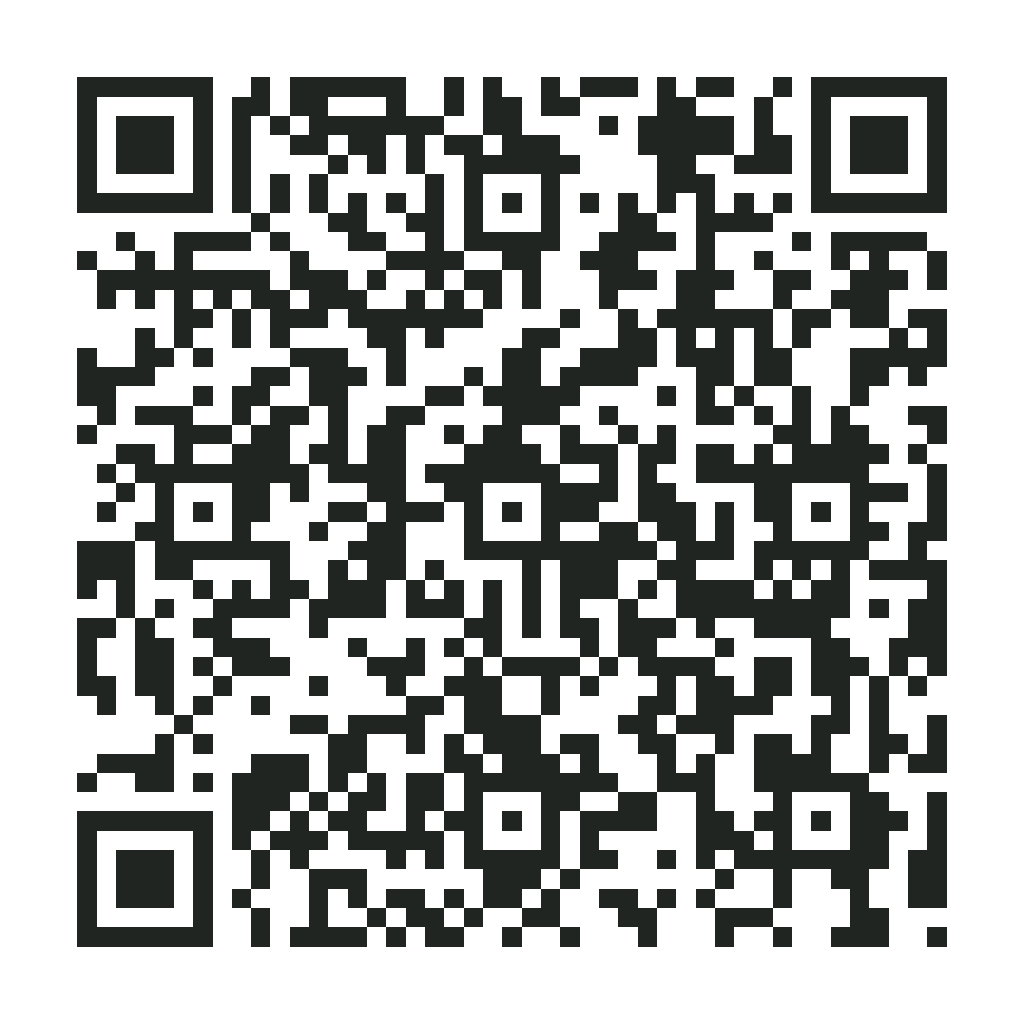
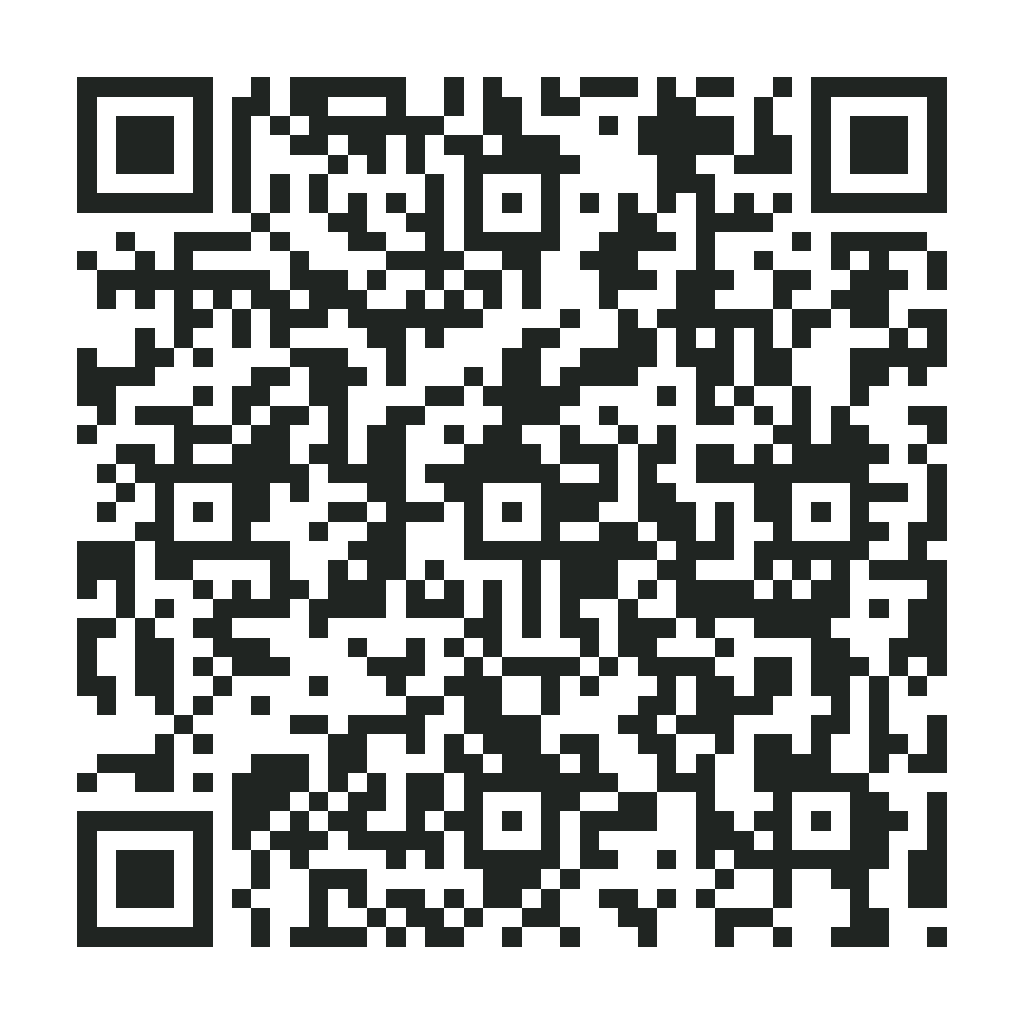
The downloadable PNG was decoded back to the exact practice-PDF URL. Test a printed copy at its final size on a second device; a successful image decode alone does not prove print readability.
Folio-generated fictional examples. These checks apply to the supplied files and settings.
Decoded payload is the direct public practice-PDF URL; Four-module quiet zone.
Decoded payload matches SVG; 1024 × 1024 pixels.
Folio does not impose an expiry on a static code, but the linked page must stay available. Changing the destination requires a new code unless it points to an editable short link.
Choose Website for a destination address, Text for a short message, or Wi-Fi for network connection details. The QR stores the content directly and does not use a Folio tracking redirect. Use dark modules on a light background and keep the clear border intact. Before printing, scan the exported file on a second device and test it at the intended printed size. A website QR still depends on the destination remaining available; a Wi-Fi QR contains the network password.
A static QR stores its original content, so changing the website address requires a new code. If you need to change a destination later, create an editable short link first and make the QR point to that link. The redirect then depends on the short-link service.
The printed modules may be too small, the colors may have low contrast, or the clear border may have been cropped. Keep the border, use a dark foreground on a light background, and test the actual printed size before producing a batch.
PNG works well in documents and on screens. SVG keeps the module shapes sharp when resized for artwork. Avoid stretching a QR unequally or placing text over it.
Folio does not impose an expiry on the static code. A website code works only while its destination is available, and a Wi-Fi code needs updating if the network details change.