Merge images.
Merge JPG, PNG and WEBP images into one PDF for free. Combine different formats, reorder the pages and preview the complete document.
On your deviceNo sign-up neededFree to use
Merge JPG, PNG and WEBP images into one PDF for free. Combine different formats, reorder the pages and preview the complete document.
or drop your files here
JPG, PNG and WEBP · Up to 50 MB per fileAdd JPG, PNG and WebP images in one batch, up to 20 files and 150 MB combined.
Arrange the complete file list, then choose A4 or Fit each image for the PDF pages.
Create the PDF and check that the page count matches the image count and that every page is in order.
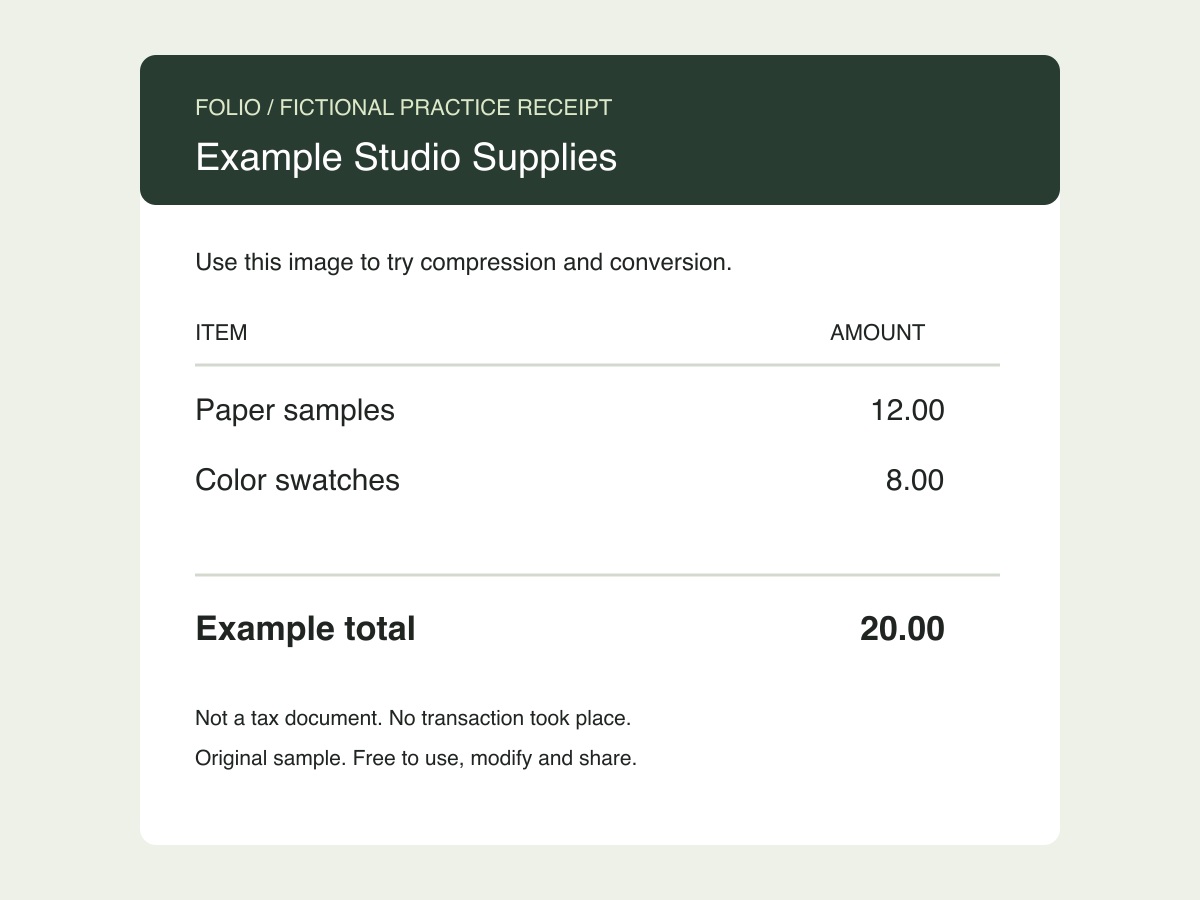
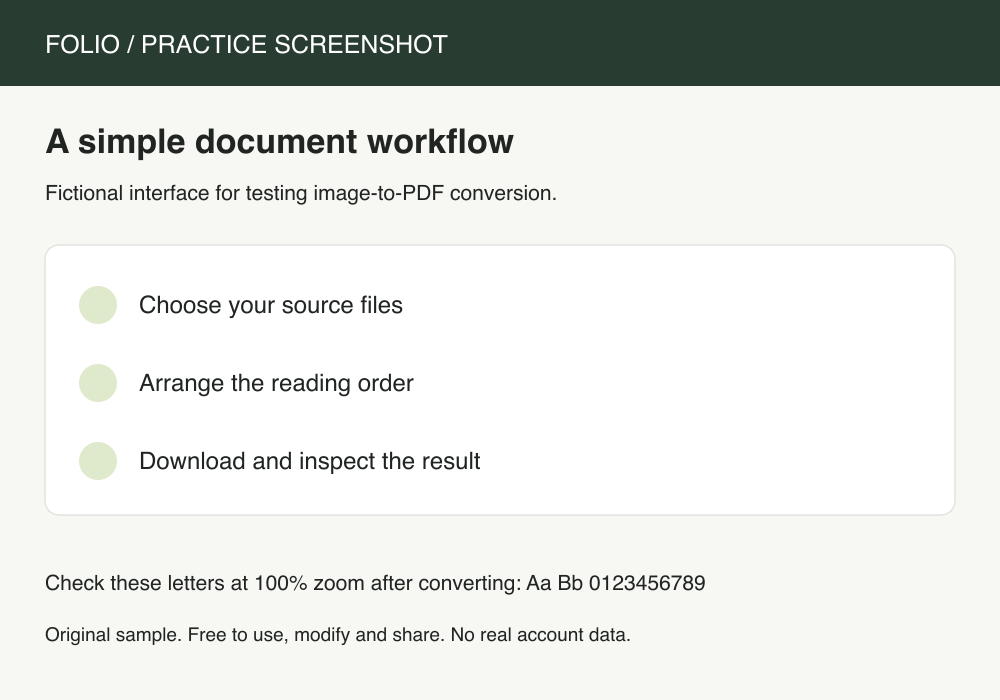
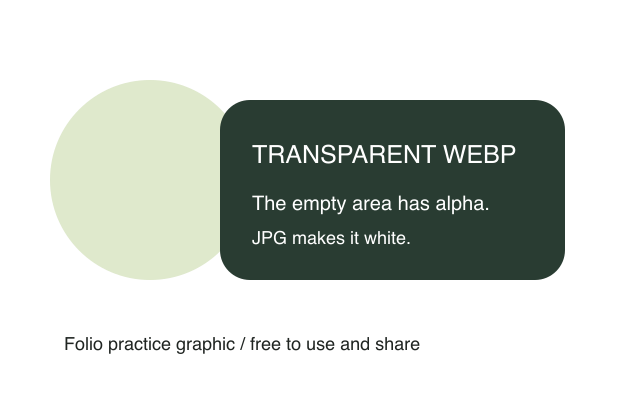
Combine a receipt, a screenshot and a graphic into a single attachment. This workflow makes a sequence of pages rather than a stitched collage.
Original, fictional samples. Download a file, then select it in the tool above.
Receipt is first, screenshot second, graphic third. This is a document packet, with one image per page, rather than a stitched collage.
Folio-generated fictional examples. These checks apply to the supplied files and settings.
Receipt, screenshot, transparent WebP in order; Three A4 portrait pages; no OCR.
This does not merge pictures into one JPG or PNG. Use the dedicated JPG-to-PDF or PNG-to-PDF pages when all inputs share a format.
Merge images creates one PDF attachment with one image per page. Mix a receipt photo, a screenshot and a graphic without first converting them to a common image format. A4 provides consistent portrait pages; Fit each image allows different page dimensions. WebP sources and JPEGs needing orientation correction are decoded to PNG before embedding. The output is a sequence of PDF pages, so use another workflow if you need a stitched panorama, collage or one combined JPG.
No. It produces a multi-page PDF. Each source image occupies its own page; the tool does not stitch pictures together or combine them on one canvas.
Yes. JPG, PNG and WebP share one file list. Use the move controls before creating the PDF and inspect the resulting sequence in the preview.
Check the source first. JPEG orientation metadata is respected, but conversion cannot repair a blurred photo or detect how a screenshot should be read. Correct the source or rotate the resulting PDF page before sharing.