
Prepare pictures that belong together
Combining images into one PDF is useful for a set of receipts, project photographs, or screenshots that someone should read in order. Open Image to PDF for a mixed group of JPG, PNG, and WEBP files, or choose a format-specific tool for JPG or PNG. Each image becomes a separate page. Check that every picture is readable before adding it; packaging a blurred receipt inside a PDF will not make its details clearer.
How do I combine receipt photos into one PDF?
For an expense packet, collect clear pictures of the receipts and put them in the order the reviewer expects, such as purchase date. Keep totals, dates and merchant names visible; crop empty desk space in your device’s image editor before importing. Folio combines the pictures but does not verify expenses, automatically crop receipts, or recognize their text.
- Save each receipt as JPG, PNG or WEBP. If your phone saved HEIC files, convert them to a supported format first.
- Open Image to PDF, add the receipt pictures, and move them into the required order.
- Choose A4 — centered with margins for consistent portrait paper, or Fit each image to preserve each picture’s proportions.
- Choose Create PDF, check that every amount and date is readable, then download the finished packet.
Arrange the reading order
Choose the images and use the move controls beside each file to set their order. Remove accidental duplicates before creating the PDF. The tool accepts up to 20 files per batch, with a 50 MB limit for each file and a 150 MB combined limit. Very large images may need resizing first. Keep the originals separately if you plan to adjust brightness or compression. File names can help you recognize pages, but the order in the workspace determines the PDF order.
Choose page dimensions deliberately
Fit-to-image makes each page follow its picture’s proportions, using 96 pixels per inch to determine the PDF page dimensions. A4 centers the picture on a standard page with margins, which is useful when the document will be printed or combined with other A4 paperwork. Mixing portrait and landscape photographs is allowed. Ordinary JPG and PNG images retain their image data; WEBP and photos that need orientation correction are decoded before embedding so they display correctly.
Try the same two images with A4 and fitted pages
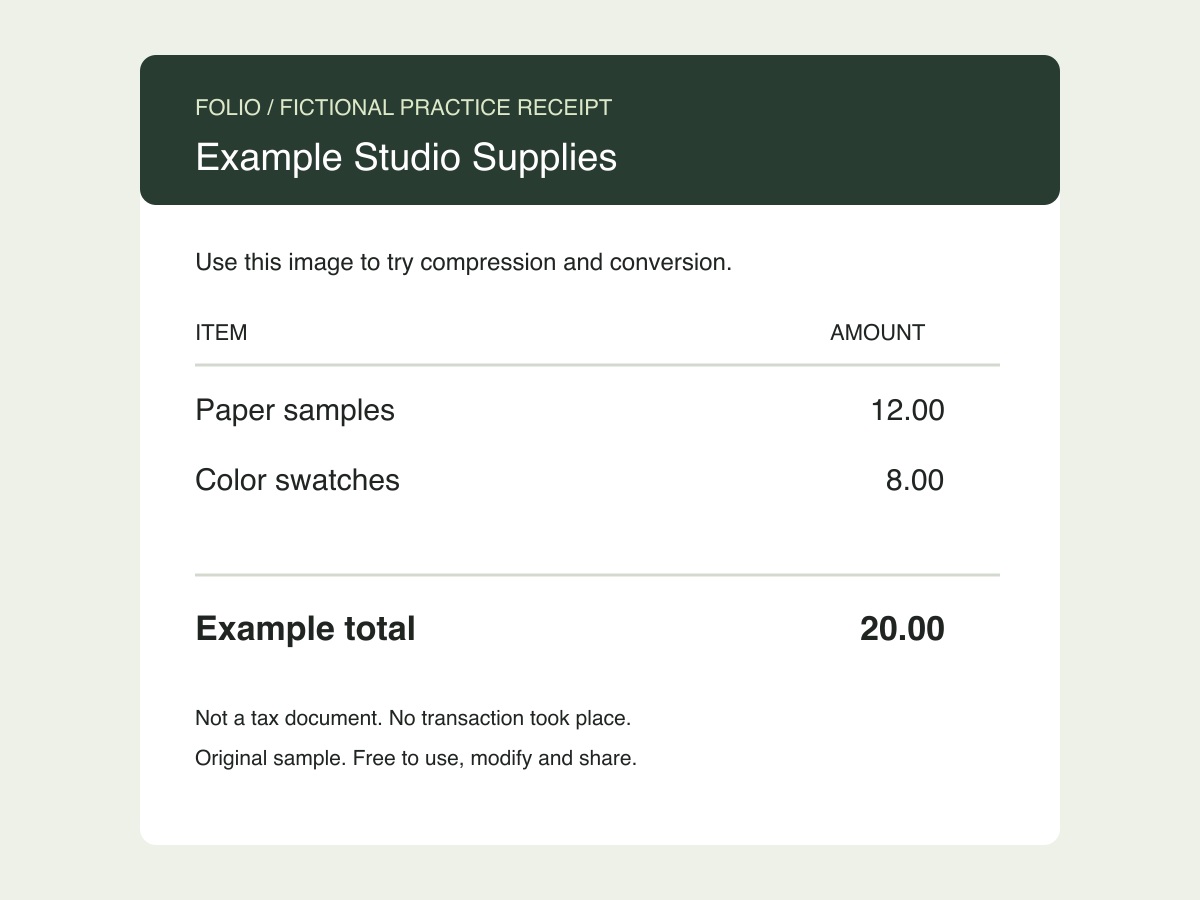
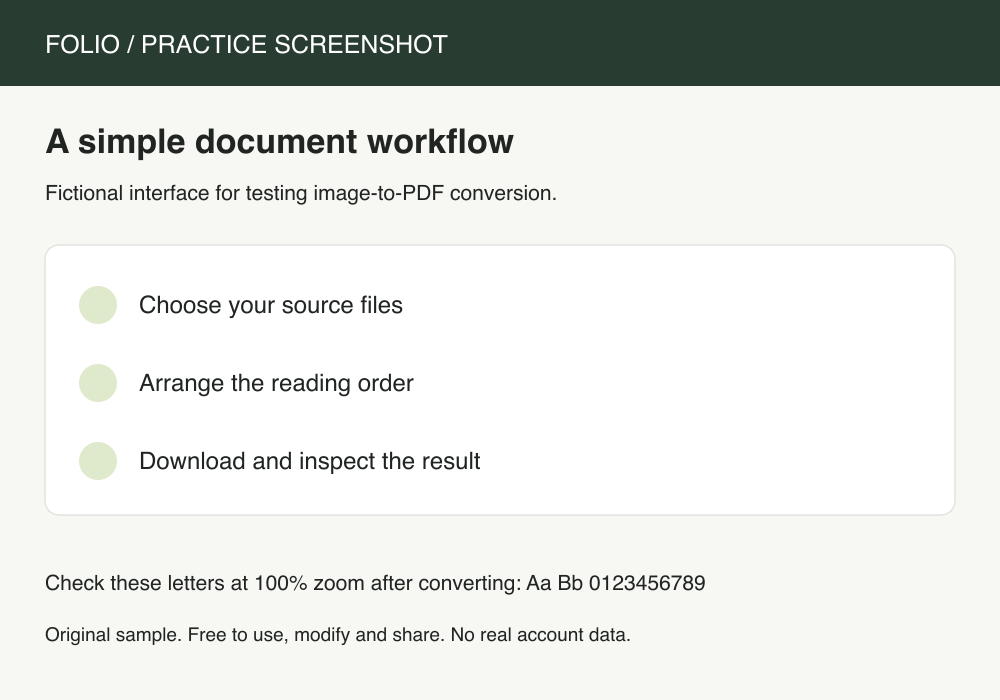
The fictional receipt JPG is 1200 × 900 pixels; the practice screenshot PNG is 1000 × 700 pixels. Download both and add the receipt first. Create one PDF with A4 selected, then switch to Fit each image and create another. The worked downloads below were produced by Folio’s image-to-PDF engine and checked for two pages, their dimensions, and the absence of an OCR text layer. This is a controlled example, not a promise about other photos or their file sizes.
| Setting | First page: receipt | Second page: screenshot |
|---|---|---|
| A4 — centered with margins | 595.28 × 841.89 points | 595.28 × 841.89 points |
| Fit each image | 900 × 675 points | 750 × 525 points |
What if the result is tiny, sideways, or too large?
A long screenshot can become very small when fitted onto one A4 sheet. Choose fitted pages if the recipient can zoom, or capture shorter sections before importing when normal-size printing matters. Folio does not automatically split a long screenshot over several sheets. A4 uses portrait paper even for a landscape photo; choose fitted pages to follow the picture’s shape. For a sideways source, correct its orientation before importing, or rotate the finished PDF page. If the receiving site rejects the PDF’s size, reduce the source images in Image Compressor and recreate the PDF, checking small text again. Compress PDF only optimizes document structure and may save little on an image-heavy packet.
Review the PDF, not only the file list
Choose Create PDF and move through the result preview. Confirm the first and last pages, orientation, visible margins, and total page count. If something is wrong, adjust the order or page setting and recreate the result. Download the PDF when it looks right; this workflow is free. Text photographed inside the images remains part of those images rather than selectable PDF text. A searchable text layer needs OCR, which is not currently a standalone Folio tool.