
Should I convert my PDF to PNG, JPG or text?
PNG and JPG render the entire page as an image. They do not extract the original embedded photographs, and the image does not retain working links, selectable words or interactive form fields. Choose the output by how you will use it.
| What you need | Start with | Tradeoff to check |
|---|---|---|
| Small text, charts or diagrams | PNG | Lossless image encoding avoids JPEG artifacts around letter edges, but the file may be larger. |
| A photograph-heavy page | JPG | Often smaller for photographs. Inspect small text and fine lines for compression artifacts. |
| Words you can copy into notes | Plain text | Extracts selectable text without the page layout. Scanned words need OCR elsewhere. |
| An editable or interactive document | Keep the PDF | Converting to an image removes interactive document behavior. |
Select just the PDF pages you need
Open PDF to PNG or PDF to JPG and choose a PDF. In Pages, enter a selection such as 1-3, 5. This refers to positions in the file, not the numbers printed on the page; a cover sheet can shift the numbering. Convert the selection, then use the preview navigation to check each image. A single selected page downloads directly as an image. Several selected pages download together in a ZIP that you can open to access the individual images.
How do I export a PDF to PNG at 300 DPI?
Choose your file in PDF to PNG, set Pages if needed, set Resolution to Print — 300 DPI and choose Convert to PNG. Folio renders the corresponding pixel dimensions and writes the chosen resolution into the image metadata. These sizes apply to an 8.5 × 11 inch US Letter portrait page; other page dimensions produce different pixel sizes at the same DPI.
| Resolution setting | Output width × height | Typical use |
|---|---|---|
| Standard — 108 DPI | 918 × 1188 pixels | Smaller previews |
| High — 144 DPI | 1224 × 1584 pixels | Reading on screen |
| Extra high — 216 DPI | 1836 × 2376 pixels | Larger previews and fine detail |
| Print — 300 DPI | 2550 × 3300 pixels | Printing at the original page size |
Practice: export a landscape page and compare actual files
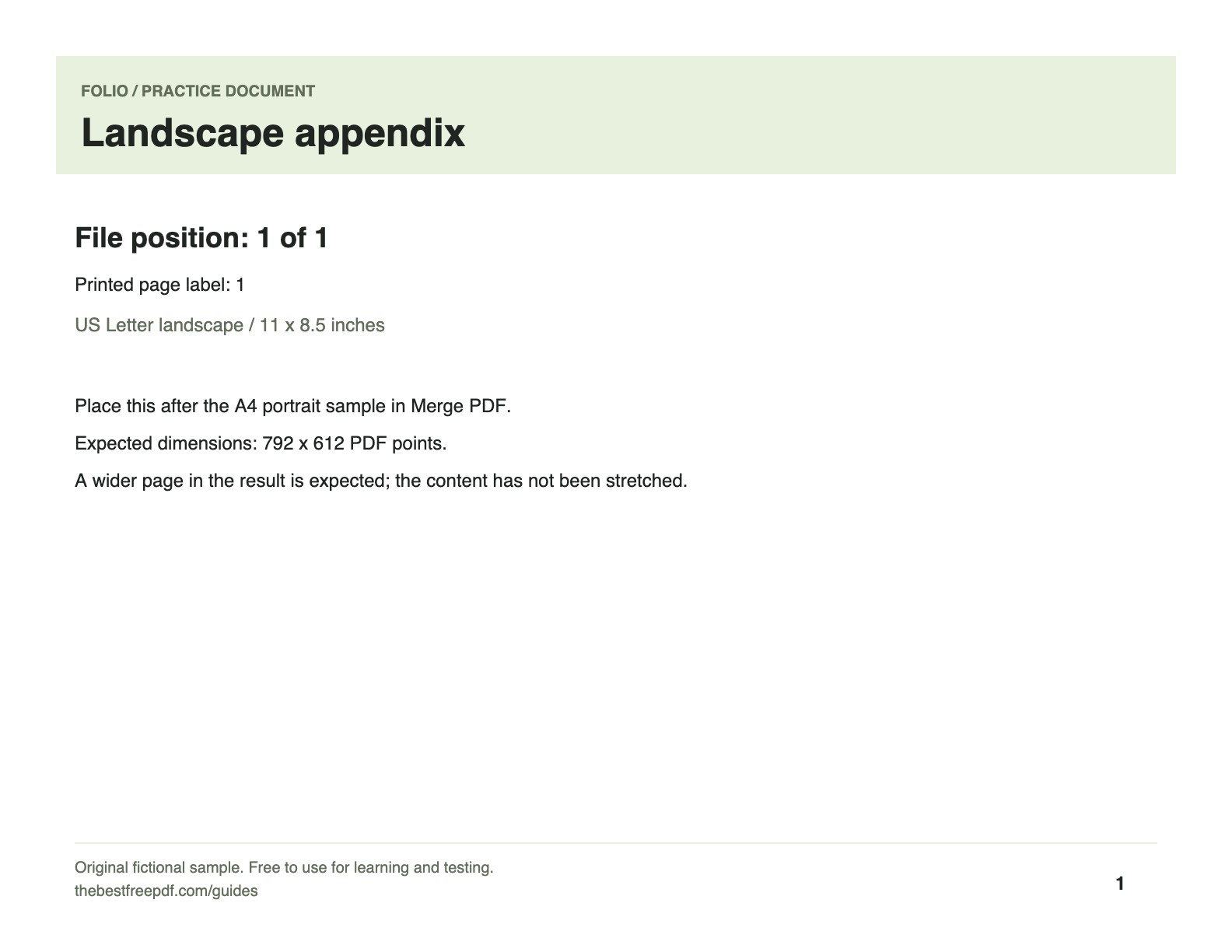
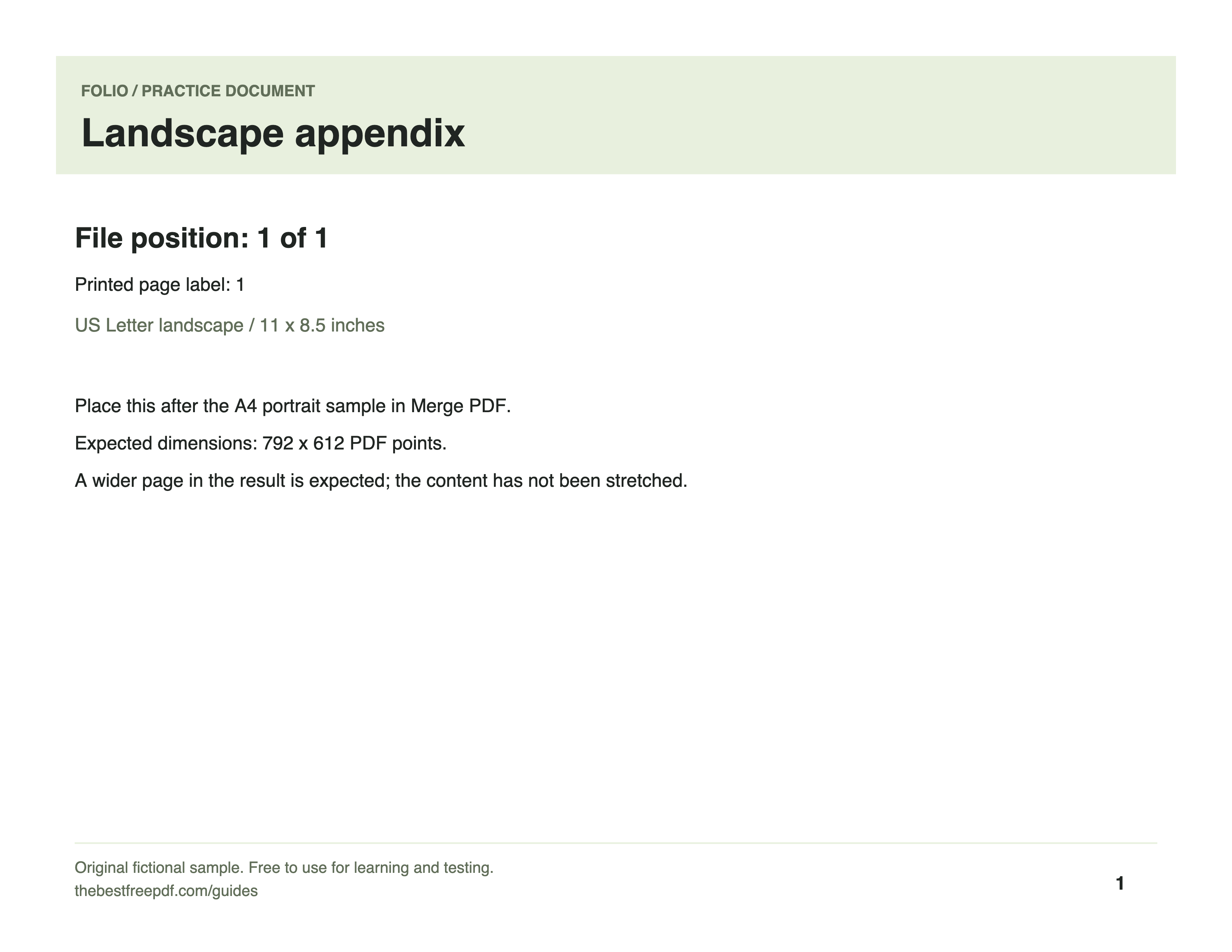
Compare a JPG at 144 DPI and a PNG at 300 DPI from one known 11 × 8.5 inch page. Both format and resolution change, so this is a settings illustration, not an encoding-quality benchmark. This standalone workflow processes document contents in the browser. Opening its result in the editor starts a separate private cloud workspace.
- In PDF to JPG choose page 1, High — 144 DPI, and Balanced — 90% quality, then convert and download JPG.
- In PDF to PNG use the same page with Print — 300 DPI, then download PNG.
- Inspect image dimensions and fine text at 100% zoom. Choose for the required use rather than assuming the larger file must be better.
| Check | Expected outcome |
|---|---|
| Finished output | JPG: 1584 × 1224 pixels. PNG: 3300 × 2550 pixels. A single selected page downloads as an image rather than a ZIP. |
| If your result differs | Check page orientation and the resolution setting. Exporting a larger number of pixels cannot restore detail absent from a low-resolution source. |
What if the image is blurry, too large or will not export?
Start by checking the source PDF at the size you need. More pixels cannot restore detail that is missing from a low-resolution scan. Doubling resolution in both directions creates roughly four times as many pixels, increasing memory use. Folio limits raster output to 25 million pixels per page and 200 pages per export.
| Problem | What to try | Expected limit |
|---|---|---|
| JPG text edges look uneven | Try PNG or a higher resolution and compare at 100% zoom. | A blurred source scan can remain blurred in either format. |
| The image is too large to share | Reduce resolution, export fewer pages or compress the exported image. | Check readability again; smaller dimensions or lossy compression can discard detail. |
| A large page or batch will not export | Lower the resolution for oversized pages, or export smaller page selections. | Stay within the per-page pixel and per-export page limits. |
| The exported words cannot be selected | Use PDF to Text if the source contains selectable text. | An image is pixels; this conversion does not perform OCR. |
Check the downloaded result before sharing
Check footnotes, chart lines and signatures at a useful reading size. For a ZIP, open it and confirm that it contains the intended page images. Keep the original PDF for future edits and interactive use. These conversions and downloads are free and leave the original PDF unchanged. If you later combine the images into a PDF, the words remain images rather than becoming selectable text again.