
“Convert this PDF” can mean several different things. You might need a slide image, a collection of receipts in one document, editable words for your notes, or an Office file for further work. Choosing the output format first prevents unnecessary conversions and makes the result easier to evaluate.
A PDF is designed around pages. When you convert it, some of the information that matters on a page may no longer behave the same way. Images preserve the visible appearance, plain text keeps the words, and editable document formats attempt to reconstruct a working layout.
Match the format to the job
Your next task | Useful format | What to check |
|---|---|---|
Place a page preview in a presentation | JPG | Small text and compression artifacts |
Share a diagram or a text-heavy page as an image | PNG | Resolution and the resulting file size |
Combine receipt photos or sketches into a document | PDF from JPG, PNG, or WebP | Image order, orientation, and page fit |
Reuse selectable words in notes | Plain text | Reading order and missing layout |
Continue editing in Word, Excel, or PowerPoint | The original Office file, or a separate conversion service | Folio does not provide Office conversion; check any reconstructed layout separately |
Export PDF pages as JPG or PNG
Use PDF to JPG for page previews where a compact image is helpful. PNG is a useful alternative for diagrams, fine lines, and text-heavy pages because its image encoding avoids lossy compression artifacts. The selected resolution still determines how much detail the rendered page contains.
Open PDF to JPG or PDF to PNG and choose your PDF.
Select the pages you need. Leave the range empty for all pages, or enter a selection such as 1-3, 6.
Choose an image resolution appropriate to where you will use the result.
Run the conversion. One selected page downloads as a JPG or PNG; multiple pages download in a ZIP containing one image per page.
Open an exported image at its intended display size and check the smallest important text.
An exported page image no longer contains selectable PDF text or interactive fields. A visible link becomes part of the picture rather than a clickable PDF link. Keep the original PDF if recipients need to search, copy text, or interact with a form.
Turn images into a single PDF
Image to PDF is useful for grouping receipt photos, sketches, and existing JPG, PNG, or WebP images. Add the images, arrange their order, and choose fitted pages or A4. Each image becomes its own PDF page. A4 places the image on a portrait sheet with margins; fitted pages follow the image proportions.
Prepare the images before combining them. Rotate a sideways photo, remove an accidental duplicate, and check that handwriting is readable. Folio accepts JPG, PNG, and WebP in this tool, with up to 20 images per batch, 50 MB per file, and 150 MB combined. Convert other formats, such as HEIC, before adding them.
Creating a PDF from a photograph does not recognize the words inside it. The resulting document contains page images. If searchable text is essential, you will need a separate OCR workflow; Folio does not currently offer standalone OCR.
Extract words for notes and reuse
PDF to text extracts existing selectable text and downloads it as a plain text file. It is a practical choice when you want the wording from a report without its typography, page furniture, or images. Select only the pages you need to keep the output focused.
Read the extracted text before reusing it. Multi-column pages can produce an unexpected reading order, and tables may lose the visual relationship between cells. Plain text does not preserve fonts, images, or complex layout. If the PDF is an image-only scan, there may be no selectable words to extract.
Understand Office conversion availability
Folio does not offer PDF-to-Word, Excel, or PowerPoint conversion. Use PDF-to-image conversion for page images, or extract selectable text when you only need the wording. Neither output reconstructs an editable Office document.
If you need an editable Office document, first ask for the original Word, Excel, or PowerPoint file. If you use another conversion service, review paragraph flow, tables, and object placement in the downloaded result.
Convert once, review, then share
Work from the best available original and avoid unnecessary round trips between formats. Give the output a descriptive name that identifies its purpose, such as workshop-page-03.png or receipts-march.pdf. Keep the source until you have confirmed that the converted copy does everything the recipient needs.
Explore PDF conversion tools, or go directly to PDF to JPG, PDF to PNG, Image to PDF, and PDF to text.
Cover photograph by nicoll camacho on Unsplash.
Practice: compare what a page image and text extraction preserve
Use one landscape source to distinguish pixels from words. The DPI guide teaches image resolution; this exercise chooses the output by what the next application needs to receive.
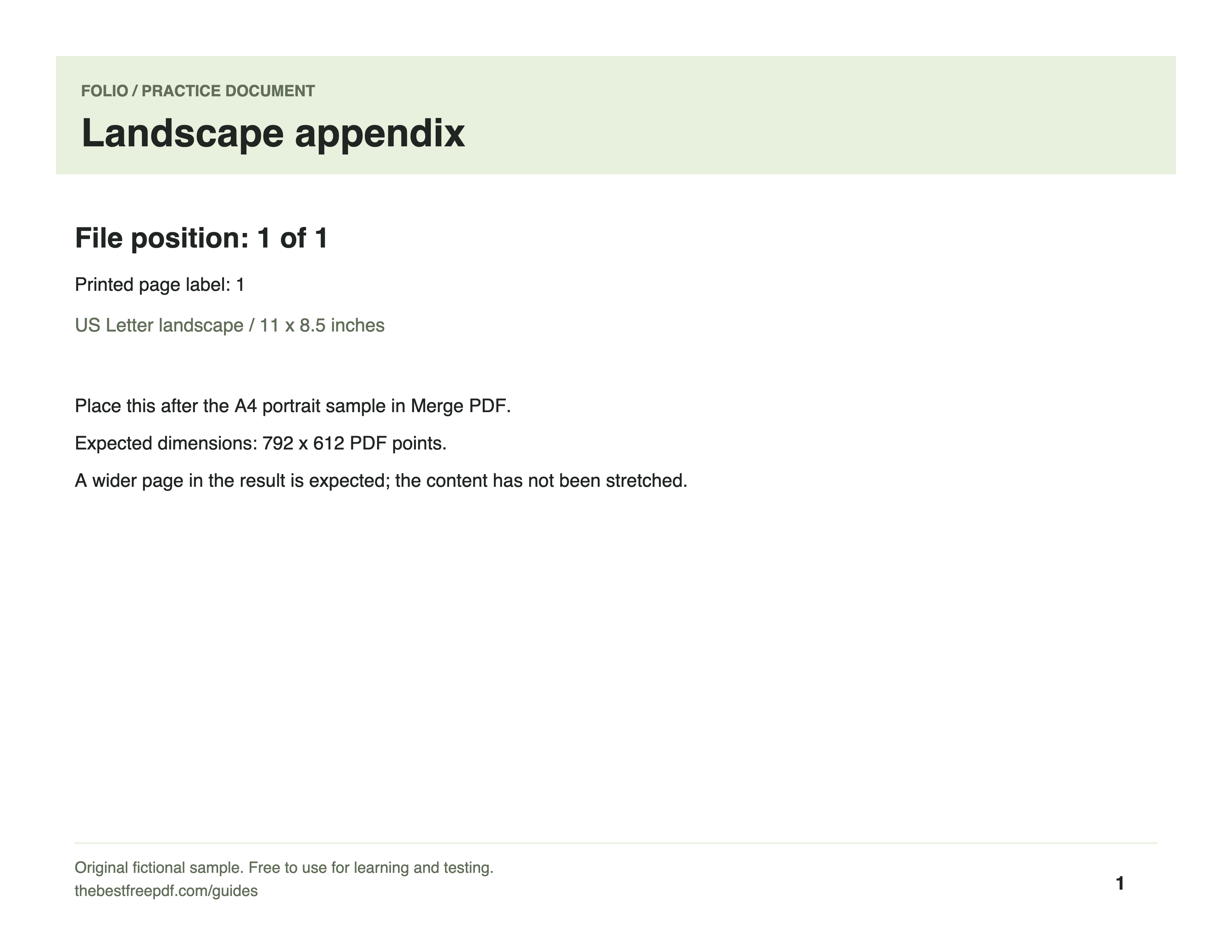
- Export source page 1 as PNG at 300 DPI. Inspect its page geometry and visible labels.
- Extract the same source as text. Open the TXT file in a text editor, not an image viewer.
- Compare both references: the PNG preserves page appearance as pixels; the TXT keeps extracted wording without the page’s graphic layout.
Expected result
PNG is 3300 × 2550 pixels. The TXT includes Landscape appendix and no page-image layout. Neither reconstructs a Word document or performs OCR.
If your result differs
If a scan produces no words, it needs a separate recognition step. If you need editable tables or paragraphs, neither page pictures nor plain-text extraction recreates that source layout.
This standalone workflow processes document contents in the browser. Opening its result in the editor starts a separate private cloud workspace.
A little appreciation goes a long way.